ALL IN ONE WEBSITE !!

curl "https://generativelanguage.googleapis.com/upload/v1beta/files?key=YOUR_API_KEY" \
-H "X-Goog-Upload-Protocol: multipart" \
-F "metadata={\"file\": {\"display_name\": \"my_video\"}};type=application/json" \
-F "file=@/path/to/your/video.mp4;type=video/mp4"
Upload a video file
curl "https://generativelanguage.googleapis.com/v1beta/models/gemini-3-flash-preview:generateContent" \ -H "x-goog-api-key: $GEMINI_API_KEY" \ -H 'Content-Type: application/json' \ -X POST \ -d '{ "contents": [{ "parts":[ {"file_data":{"mime_type": "'"${MIME_TYPE}"'", "file_uri": "'"${file_uri}"'"}}, {"text": "Summarize this video. Then create a quiz with an answer key based on the information in this video."}] }] }' 2> /dev/null > response.json
Generate content using the uploaded video file
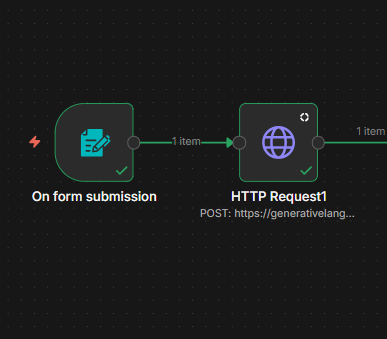
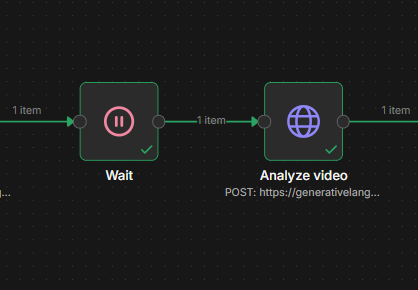
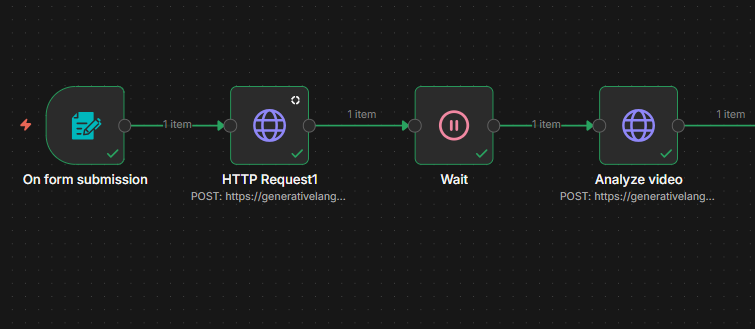
Upload & Analyze Video
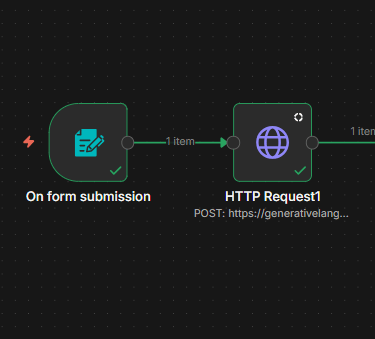
On Form Submission (Trigger): The process begins when a form is submitted. This node acts as the entry point, receiving the initial data, which likely includes the video file or a link to it.
HTTP Request: Once the form is received, the workflow executes an HTTP Request. This node sends a POST request to a URL starting with https://generativelang..., which suggests it is communicating with Google's Gemini to upload or initiate the video processing.
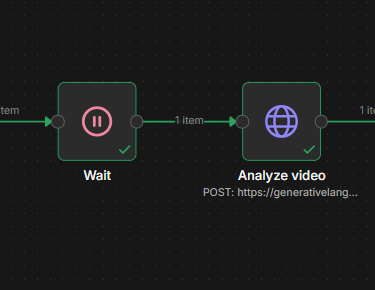
Wait: After the initial request, the workflow enters a "Wait" state. This pause is likely necessary to allow Google's Gemini time to ingest or pre-process the video before the next step can occur.
Analyze Video: Finally, a second HTTP Request node named "Analyze video" is triggered. This also sends a POST request using Google API. In this step, the automation likely sends specific prompts or instructions to the AI to perform the actual analysis of the video content and return the results.